FiveM (FXServer) lets you host a modified GTA V server on Windows or Linux. This guide covers a local install, a Linux VPS or dedicated server install, txAdmin, ports (30120 TCP/UDP, 40120 for txAdmin), firewall, systemd, updates and troubleshooting. Allow 30 to 60 minutes.
Step-by-step installation
Create a Cfx.re account and get a server license key at portal.cfx.re.
Install Git (and xz-utils on Linux) then download the "recommended" FXServer build from the Server Download page.
Extract the build into a "server" folder and clone cfx-server-data into a separate "server-data" folder.
Choose a method: txAdmin (web interface, recommended) or manual start with a server.cfg.
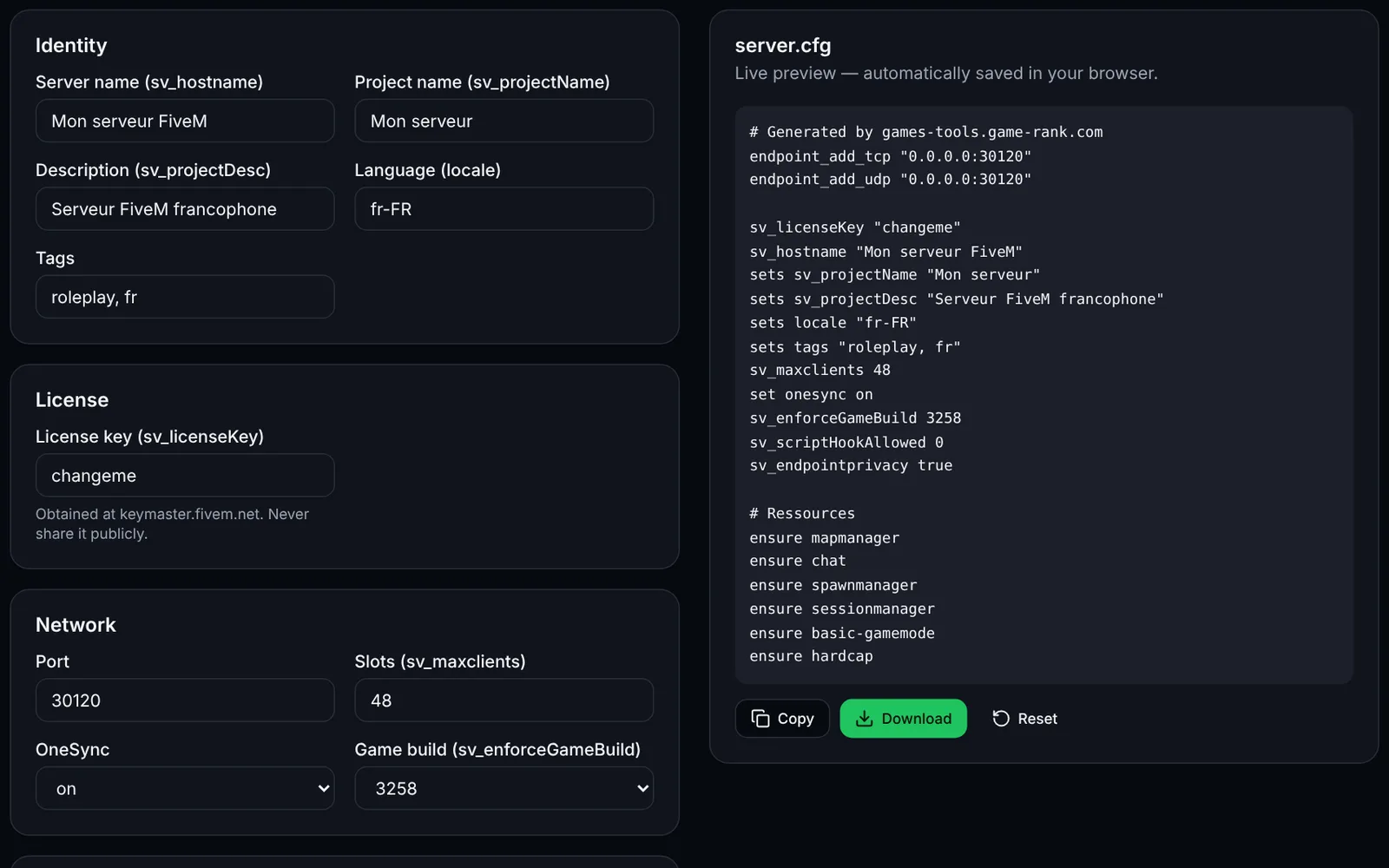
Set sv_licenseKey in server.cfg (or the key in the txAdmin wizard) and start FXServer with +exec server.cfg.
Test locally: connect from FiveM with the F8 command "connect 127.0.0.1:30120".
Open port 30120 in TCP and UDP (and 40120 TCP if you use txAdmin remotely) in the system firewall and your provider's firewall.
On a home router, add a port forward (NAT) for 30120 TCP/UDP to the server machine.
On Linux, create a systemd service (or use tmux/screen) to start and restart the server automatically.
Schedule backups, build updates and restarts; keep server-data separate from the binaries.
Add your server on game-rank.com so players can find it.
Requirements
Per the official documentation: on Windows, Git (recommended) and an archiver such as 7-Zip; on Linux, Git (recommended) and the xz or xz-utils package. The Linux server is described as a "courtesy port": Windows remains the best-supported platform. Hardware needs are not officially fixed: they depend on installed resources and player count, so plan for several GB of RAM and an SSD to be safe. Players also need GTA V on their own PC.
- Server license key: portal.cfx.re (a Cfx.re account is required).
- For "FiveM for GTAV Enhanced", the documentation adds the Microsoft Visual C++ 2017 Redistributable on Windows.
- For RedM (RDR2), add "set gamename rdr3" to server.cfg.
Local install on Windows
Download the "recommended" (Windows) build from the Server Download page on docs.fivem.net, extract it to C:\FXServer\server, clone the server data, create server.cfg (see the server.cfg generator tool) with your sv_licenseKey, then start from the server-data folder. In FiveM, open the F8 console and type connect 127.0.0.1:30120.
mkdir C:\FXServer\server
cd /d C:\FXServer
:: extract the downloaded archive into C:\FXServer\server (7-Zip), then:
git clone https://github.com/citizenfx/cfx-server-data.git server-data
cd /d C:\FXServer\server-data
C:\FXServer\server\FXServer.exe +exec server.cfg
Install on a Linux VPS / dedicated server
On Ubuntu/Debian, create a non-root "fivem" user, install git and xz-utils, copy the URL of the Linux "recommended" build (fx.tar.xz file) from the Server Download page and replace BUILD_URL below. Put your server.cfg in ~/FXServer/server-data before the first start.
sudo adduser --disabled-password --gecos "" fivem
sudo apt update && sudo apt install -y git xz-utils wget tmux ufw
sudo -iu fivem

mkdir -p ~/FXServer/server && cd ~/FXServer/server
wget BUILD_URL -O fx.tar.xz   # Linux 'recommended' URL from docs.fivem.net/docs/server-download
tar xf fx.tar.xz && rm fx.tar.xz
git clone https://github.com/citizenfx/cfx-server-data.git ~/FXServer/server-data

# create ~/FXServer/server-data/server.cfg (sv_licenseKey, endpoints...), then:
cd ~/FXServer/server-data
bash ~/FXServer/server/run.sh +exec server.cfg
Install with txAdmin
txAdmin is bundled with FXServer. Start FXServer without +exec: txAdmin prints a PIN in the console and its web interface opens on port 40120 (default of TXHOST_TXA_PORT, which cannot be 30120). Enter the PIN, link your Cfx.re account, create the admin password, name the server, pick the "CFX Default FiveM" popular recipe, enter your license key in the Recipe Deployer, then "Save & Run Server". On a VPS, open TCP 40120 only for your own IP, or use an SSH tunnel: txAdmin listens on all interfaces (0.0.0.0) by default. This wizard is officially documented for Windows; the steps are the same on Linux per txAdmin, but the official FiveM docs do not detail them.
# Linux: start FXServer without +exec, txAdmin prints the PIN and its URL
cd ~/FXServer/server-data
bash ~/FXServer/server/run.sh

# Optional (txAdmin env variables): change the txAdmin port, restrict the interface
TXHOST_TXA_PORT=40120 TXHOST_INTERFACE=0.0.0.0 bash ~/FXServer/server/run.sh

# SSH tunnel from your PC instead of exposing 40120:
# ssh -L 40120:127.0.0.1:40120 fivem@YOUR_SERVER
Ports to open
The game's default port is 30120, declared in TCP and UDP in server.cfg with endpoint_add_tcp and endpoint_add_udp ("0.0.0.0:30120"). To change it, edit the port in those two lines (the docs say to change only the port unless the server has several network interfaces) and open the same port. txAdmin uses 40120 (TCP) by default (TXHOST_TXA_PORT); with txAdmin, TXHOST_FXS_PORT can force FXServer's port (it cannot be 40120). At a host (OVH, Hetzner, Scaleway...), also open these ports in the offer's firewall / "security group".
- 30120/TCP — game server connection and HTTP
- 30120/UDP — game traffic
- 40120/TCP — txAdmin web interface (restrict to your IP)
- At home: forward (NAT) 30120 TCP+UDP to the PC's local IP; test from outside (mobile data) with connect PUBLIC_IP:30120.
Firewall: ufw, Windows and provider
Linux (ufw): allow SSH before enabling the firewall so you do not lock yourself out. Windows: netsh commands to run in an administrator console. Replace 203.0.113.10 with your own IP to restrict txAdmin (example address).
# Linux (ufw)
sudo ufw allow OpenSSH
sudo ufw allow 30120/tcp
sudo ufw allow 30120/udp
sudo ufw allow from 203.0.113.10 to any port 40120 proto tcp   # txAdmin, your IP only
sudo ufw enable
sudo ufw status

:: Windows (administrator console)
netsh advfirewall firewall add rule name="FXServer 30120 TCP" dir=in action=allow protocol=TCP localport=30120
netsh advfirewall firewall add rule name="FXServer 30120 UDP" dir=in action=allow protocol=UDP localport=30120
netsh advfirewall firewall add rule name="txAdmin 40120" dir=in action=allow protocol=TCP localport=40120 remoteip=203.0.113.10
Automatic start and supervision
systemd unit for Linux (file /etc/systemd/system/fivem.service). This setup is not described in the official documentation: test it, because FXServer expects a console; if the service exits immediately, run it in tmux instead (tmux new -s fivem) or use txAdmin. Without txAdmin keep +exec server.cfg; with txAdmin remove it. On Windows, create a start.bat (cd /d to the server-data folder then FXServer.exe) and a scheduled task at startup.
[Unit]
Description=FiveM server (FXServer)
After=network-online.target
Wants=network-online.target

[Service]
User=fivem
WorkingDirectory=/home/fivem/FXServer/server-data
ExecStart=/bin/bash /home/fivem/FXServer/server/run.sh +exec server.cfg
Restart=on-failure
RestartSec=10

[Install]
WantedBy=multi-user.target

# sudo systemctl daemon-reload && sudo systemctl enable --now fivem
# sudo journalctl -u fivem -f
Updates, backups and restarts
Update: stop the server, replace the contents of the "server" folder with the recommended build (the "FXServer artifact updater" tool generates the script); server-data is untouched. Backup: archive server-data (server.cfg, resources) and, with txAdmin, its data folder (txData, next to the binaries folder on Windows). Scheduled restart: txAdmin offers scheduled restarts in its settings; without txAdmin, use cron. Adapt the paths.
# Backup (adapt paths) - run as the fivem user
tar czf ~/backup-$(date +%F).tar.gz -C ~/FXServer server-data

# crontab -e : nightly backup at 04:00 and restart at 04:30 (non-txAdmin setup)
# 0 4 * * * tar czf $HOME/backup-$(date +\%F).tar.gz -C $HOME/FXServer server-data
# 30 4 * * * sudo systemctl restart fivem   # needs a sudoers rule, or use root's crontab

# Update the build: stop, replace, start
sudo systemctl stop fivem
cd ~/FXServer/server && wget NEW_BUILD_URL -O fx.tar.xz && tar xf fx.tar.xz && rm fx.tar.xz
sudo systemctl start fivem
List your server and get found
Set a clear sv_hostname and tags in server.cfg, then add your server on game-rank.com/jeux/gta (FiveM / GTA V page) so players can rank and find it. A server with sv_lan enabled is hidden from the public list.
Troubleshooting
- "No license key" / the server will not start: sv_licenseKey missing, still "changeme" or not loaded. Check the key on portal.cfx.re and start with +exec server.cfg from server-data.
- No resource starts, "connection refused" or timeout: wrong start folder or missing +exec (officially documented). Start from server-data with +exec server.cfg.
- Cannot connect from outside: port 30120 not open in TCP and UDP (system firewall, provider, router). Check all three levels and that the server is listening (ss -tulpn | grep 30120).
- The server does not appear in the list: sv_lan enabled, missing endpoints or blocked port. Once online, wait a few minutes; test with a direct connection first.
- Cannot reach txAdmin: port 40120 blocked or service stopped. Use an SSH tunnel, check FXServer is running and TXHOST_TXA_PORT was not changed (it cannot be 30120).
Frequently asked questions
- Which ports do I need to open for a FiveM server?
- Port 30120 in both TCP and UDP (the default for the server.cfg endpoints). If you manage the server remotely with txAdmin, also open 40120 TCP, preferably limited to your IP.
- Do I have to use txAdmin?
- No. Manual start with server.cfg and +exec works. txAdmin adds a web interface (console, players, scheduled restarts, install recipes) and is bundled with FXServer.
- How many players can a server host?
- sv_maxclients accepts 1 to 2048. From 32 slots OneSync must be "on" or "legacy", and above 64 it must be "on". Real capacity depends on hardware and your resources.
- Windows or Linux to host FiveM?
- Both work. The official documentation presents the Linux version as a "courtesy port"; Windows is the best documented. Linux suits VPS well thanks to systemd and lower costs.