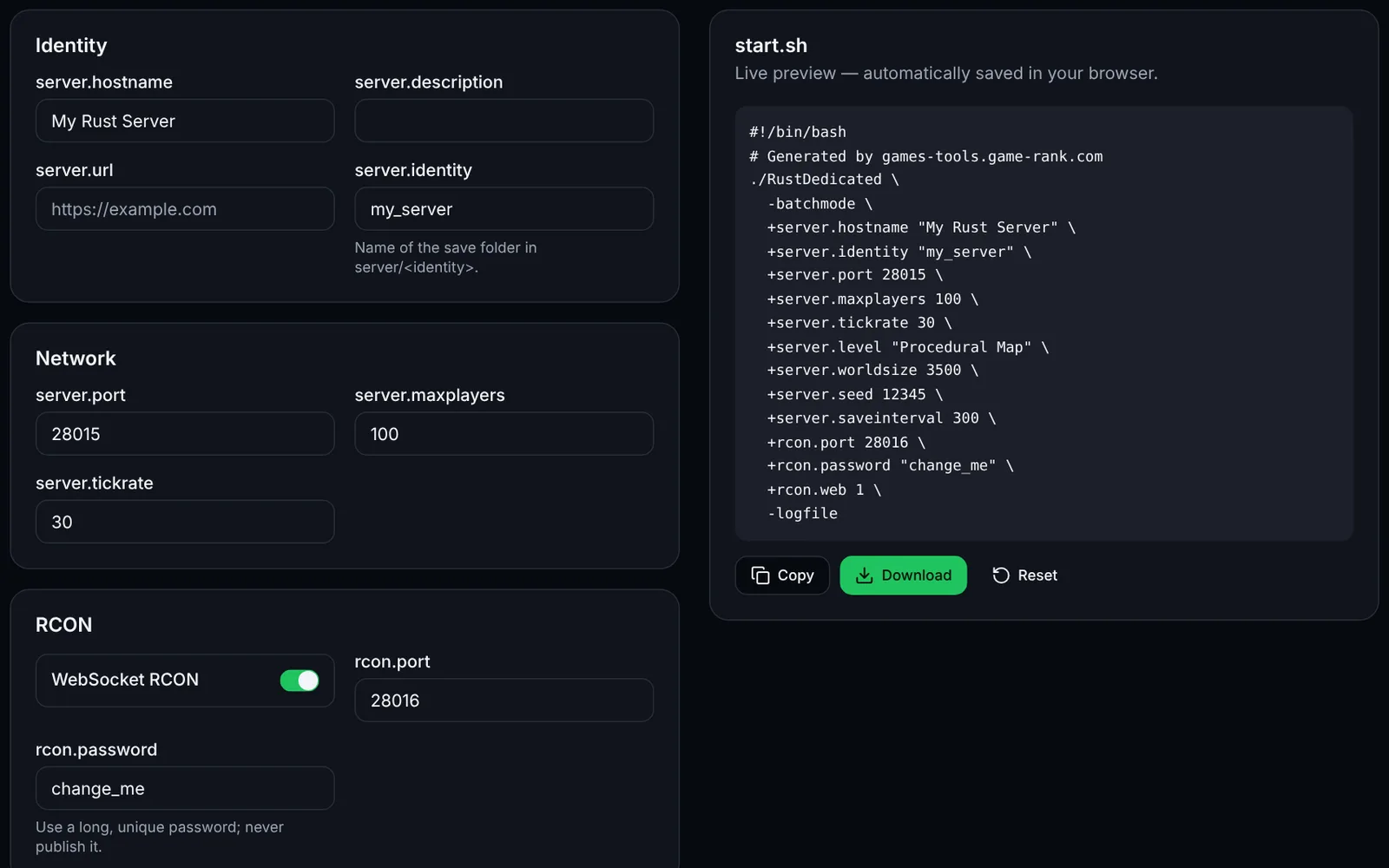
A Rust dedicated server is installed with SteamCMD (app 258550, anonymous login) on Windows or Linux. Plan for about 12 GB of free RAM and 15 GB of disk (SSD recommended) according to the Facepunch wiki; installation takes 20 to 40 minutes. This guide covers local install, a Linux VPS, ports, Oxide/uMod or Carbon, systemd and maintenance.
Step-by-step installation
Check the hardware: ~12 GB free RAM, 15 GB SSD, stable connection.
Install SteamCMD and create a non-root user (Linux) or a dedicated folder (Windows).
Download the server: app_update 258550 validate with anonymous login.
Generate a launch script with the site's “Launch command generator” tool.
Start the server once and wait for the map to generate.
Test locally: in the client, press F1 then client.connect 127.0.0.1:28015.
Open ports 28015 UDP, 28016 TCP and 28082 TCP (system firewall, provider, router).
Optional: install Oxide/uMod or Carbon (only one of them) for plugins.
Create a systemd service (Linux) or a scheduled task (Windows) for automatic start.
Schedule updates, backups and restarts, then list your server on game-rank.com.
1. Requirements
The Facepunch wiki states about 12 GB of free RAM (more for a 6000 map) and 15 GB of disk, SSD/NVMe preferred; more players need a faster CPU. No license key is needed: SteamCMD logs in anonymously to app 258550 (dedicated server, separate from the game, 252490). Use 64-bit Windows or Ubuntu/Debian.
2. Local install (Windows)
Unzip SteamCMD into C:\steamcmd, then run the command below in a command prompt. Next create start.bat with the arguments from the launch tool (RustDedicated.exe -batchmode +server.port 28015 …). To test, open Rust, press F1 and type client.connect 127.0.0.1:28015.
C:\steamcmd\steamcmd.exe +force_install_dir C:\rust-server +login anonymous +app_update 258550 validate +quit3. Linux VPS / dedicated server (Ubuntu/Debian)
Create a “rust” user without root rights, install SteamCMD (multiverse repository on Ubuntu, non-free on Debian) then download the server. The path /home/rust/server is used below.
sudo adduser --disabled-password --gecos "" rust
sudo dpkg --add-architecture i386 && sudo apt update
sudo apt install -y steamcmd lib32gcc-s1 screen   # Ubuntu: enable 'multiverse' first (sudo add-apt-repository multiverse)
sudo -iu rust
/usr/games/steamcmd +force_install_dir /home/rust/server +login anonymous +app_update 258550 validate +quit
4. Oxide/uMod or Carbon (plugins)
Oxide (uMod): download the Linux build from umod.org/games/rust and extract it into the server root (the folder containing RustDedicated), overwriting files; check with oxide.version. Carbon: download Carbon.Linux.Release.tar.gz from the CarbonCommunity/Carbon GitHub releases, extract in the root, check with c.version. Do not install both at once. Plugins go in oxide/plugins or carbon/plugins. After each Rust update, update the framework too. URLs and archive names: re-check on the official sites.
cd /home/rust/server
# Carbon example (verify the release asset name on GitHub):
tar -xzf Carbon.Linux.Release.tar.gz
# In the server console afterwards:  c.version   (or oxide.version for Oxide)
5. Ports to open
Provider firewall (OVH, Hetzner, Scaleway… “security group”): allow the same ports inbound. Home hosting: forward these ports (NAT/port forwarding) to the machine's local IP. Test: from another connection use client.connect IP:28015 or an external UDP port checker.
- 28015/UDP — game (+server.port). Change it with +server.port.
- 28016/TCP — RCON (+rcon.port; with rcon.web 1 it is WebSocket). Open it only to your admin IPs.
- 28082/TCP — Rust+ companion app port (app.port, value from community guides; the Facepunch wiki only says “TCP”).
- Query port (UDP): +server.queryport, otherwise 1 + the larger of server.port/rcon.port (28017 with the values above); it must differ from server.port.
6. Linux firewall (ufw)
Allow SSH before enabling ufw so you don't lock yourself out. Restrict RCON to your admin IP (replace 203.0.113.10).
sudo ufw allow OpenSSH
sudo ufw allow 28015/udp
sudo ufw allow 28082/tcp
sudo ufw allow from 203.0.113.10 to any port 28016 proto tcp
sudo ufw allow 28017/udp   # default query port
sudo ufw enable && sudo ufw status
7. Windows firewall
In an administrator command prompt:
netsh advfirewall firewall add rule name="Rust game" dir=in action=allow protocol=UDP localport=28015
netsh advfirewall firewall add rule name="Rust query" dir=in action=allow protocol=UDP localport=28017
netsh advfirewall firewall add rule name="Rust RCON" dir=in action=allow protocol=TCP localport=28016
netsh advfirewall firewall add rule name="Rust+" dir=in action=allow protocol=TCP localport=28082
8. Automatic start (systemd)
Put this file at /etc/systemd/system/rust.service (with start.sh executable in /home/rust/server), then: sudo systemctl enable --now rust. On Windows use a scheduled task “at startup” running start.bat; screen/tmux remain a simple alternative. The script should export LD_LIBRARY_PATH=./RustDedicated_Data/Plugins/x86_64 before running ./RustDedicated (as in Facepunch's Linux script).
[Unit]
Description=Rust dedicated server
After=network-online.target
Wants=network-online.target

[Service]
Type=simple
User=rust
WorkingDirectory=/home/rust/server
ExecStart=/home/rust/server/start.sh
Restart=on-failure
RestartSec=15
LimitNOFILE=100000

[Install]
WantedBy=multi-user.target
9. Updates, backups, restarts
Stop the server, update through SteamCMD, reinstall Oxide/Carbon if needed (a Rust update overwrites its files), then restart. Clients and server must run the same version: after each Facepunch update (monthly force wipe), update before opening. Back up server/<identity> (map, saves) and oxide/ or carbon/ (data, configs). Cron example (user rust): daily restart at 05:00 and backup at 04:50.
# crontab -e (as user rust; restart via a root cron or sudoers rule for systemctl)
50 4 * * * tar -czf /home/rust/backups/rust-$(date +\%F).tar.gz -C /home/rust/server server oxide
0 5 * * * sudo systemctl stop rust && /usr/games/steamcmd +force_install_dir /home/rust/server +login anonymous +app_update 258550 validate +quit && sudo systemctl start rust
10. Listing and finding your server
Set +server.hostname, +server.description and +server.url for the in-game list. For more visibility, add your server on game-rank.com/jeux/rust (the owner's site for this tool).
11. Troubleshooting
- Players can't connect / “version mismatch”: the server isn't on the client's version after a Facepunch update. Re-run app_update 258550 validate, then reinstall Oxide/Carbon.
- Server not in the list: check that 28015/UDP and the UDP query port (28017 by default) are open in the firewall, provider and router; wait a few minutes after startup.
- RCON refuses the connection: check +rcon.port, +rcon.password and +rcon.web; 28016/TCP must be open for your IP and the password must not be empty.
- Plugins don't load: framework not updated after Rust, Oxide and Carbon installed together, or a syntax error in oxide/config/*.json (validate with the site's config editor). Check oxide/logs or carbon/logs.
- Crash or out of memory at startup: map too large for free RAM (12 GB advised, more for 6000). Reduce +server.worldsize or add memory.
Frequently asked questions
- What is the Rust server's Steam app ID?
- 258550 (dedicated server), installable with SteamCMD using an anonymous login. The game itself is app 252490.
- Which ports does Rust use?
- 28015/UDP (game), 28016/TCP (RCON), 28082/TCP (Rust+) and a UDP query port (28017 by default). All can be changed through launch arguments.
- Oxide or Carbon?
- They are two alternative plugin frameworks: install only one. Oxide/uMod has the widest catalog on umod.org; Carbon is an independent alternative with its own permission system. Check your plugins' compatibility before choosing.
- Do I need to be an admin to manage the server?
- To play as admin, add your SteamID64 with the command ownerid <SteamID64> "name" then server.writecfg in the server console. Never run the server as root.