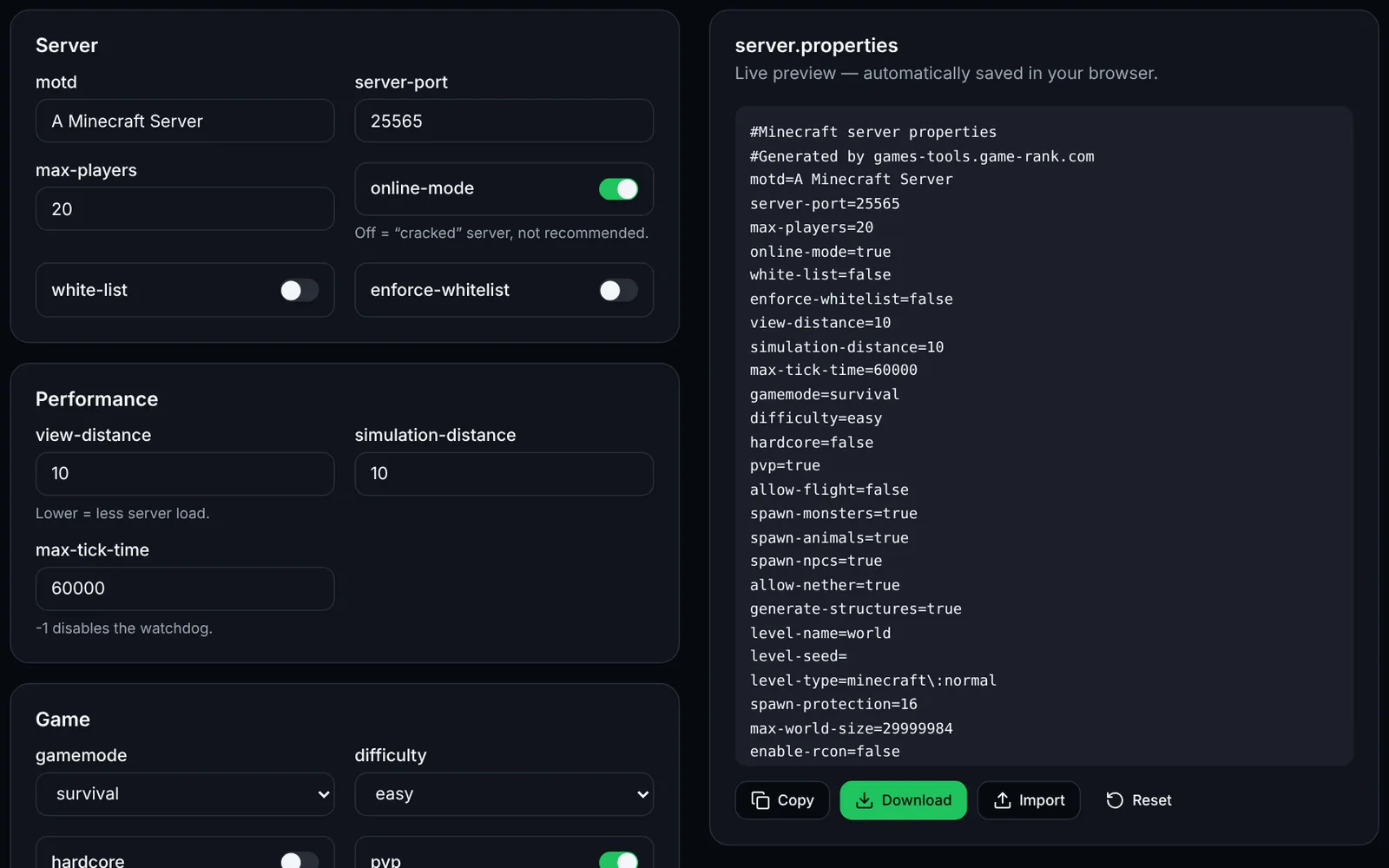
This guide installs a Minecraft Java Edition server (Vanilla or Paper) on Windows or on an Ubuntu/Debian Linux VPS, opens port 25565 and starts it automatically. Allow 20 to 40 minutes; what matters most is RAM (4 GB minimum suggested for a few players, more with plugins) and a Java version matching your game version.
Step-by-step installation
Choose the software: Vanilla (official Mojang) or Paper (plugins, better performance).
Install the Java version required by your Minecraft version.
Create a dedicated folder and put the server .jar in it.
Start the server once with java -Xms -Xmx -jar … --nogui; it stops asking you to accept the EULA.
Edit eula.txt (eula=true) then restart: the world is generated and server.properties is created.
Test locally: Multiplayer > Add Server > localhost.
Configure server.properties (online-mode, white-list, motd, max-players) with our tools.
Open port 25565/TCP on the machine's firewall, the provider's and the router.
Create a systemd service (Linux) for automatic start and crash recovery.
Schedule backups and restarts, then add your server on game-rank.com.
1. Requirements
Requirements vary a lot with players and plugins; the RAM figures below are indicative, and the PaperMC documentation recommends 6 to 10 GB when applying its flags, regardless of player count.
- Java: according to PaperMC, current Paper requires Java 25 or newer; versions 1.20 to 1.21.11 use Java 21 and 1.17 to 1.19 use Java 17. Check PaperMC's Getting started page for your version.
- OS: Windows 10/11, Windows Server, or Linux (Ubuntu/Debian for this guide); CPU: single-core performance matters most (the game is mostly single-threaded).
- Indicative RAM: 2-4 GB for a few players without plugins; 6-10 GB and more for a community (see Aikar's flags). Leave 1 to 1.5 GB for the OS. Disk: SSD, a few GB plus the world size.
- Accounts: no license key is needed to host, but players on online-mode=true must own Minecraft Java. You must accept the Minecraft EULA.
2. Local install (Windows)
Download the Vanilla jar from minecraft.net (Download server page) or Paper from papermc.io/downloads into an empty folder such as C:\minecraft. Create start.bat with the content below (adapt the jar name and RAM, or generate it with our “launch-flags” tool), run it, then set eula=true in eula.txt and run again. Connect using the address localhost.
@echo off
cd /d C:\minecraft
java -Xms4G -Xmx4G -jar paper.jar --nogui
pause
3. Install on a Linux VPS (Ubuntu/Debian)
Create a dedicated non-root user, install Java (the openjdk package must match the required version; if your distribution lacks the wanted version, use a JDK vendor repository such as Adoptium), then download the jar from papermc.io/downloads (copy the link of the build you want). Replace <JAR_URL> with that link.
sudo adduser --system --group --home /opt/minecraft minecraft
sudo apt update && sudo apt install -y openjdk-21-jre-headless curl
sudo -u minecraft mkdir -p /opt/minecraft
sudo -u minecraft curl -L -o /opt/minecraft/paper.jar "<JAR_URL>"
# Generate start.sh with the launch-flags tool, then:
sudo chmod +x /opt/minecraft/start.sh
cd /opt/minecraft && sudo -u minecraft ./start.sh   # first run, then set eula=true in eula.txt
4. Ports to open
Defaults according to the Minecraft Wiki (server.properties). To change a port: server-port, query.port, rcon.port. If you change it, open the new port instead.
- 25565/TCP — player connections (server-port). Open it.
- 25565/UDP — “query” requests (enable-query=false by default; query.port is a UDP port). Only open if you enable it.
- 25575/TCP — RCON (enable-rcon=false by default). Never expose it to the Internet; keep it local or behind a VPN.
- Provider firewall (OVH, Hetzner, Scaleway… “security group” / network firewall): also allow 25565/TCP there, in addition to the system firewall.
- Local hosting: forward 25565/TCP from the router to the PC's local IP (NAT). Test: from outside (mobile data), add your public IP in Minecraft or run “nc -vz IP 25565”.
# Linux (ufw)
sudo ufw allow 25565/tcp
sudo ufw status

# Windows (PowerShell administrateur / admin)
# netsh advfirewall firewall add rule name="Minecraft Java" dir=in action=allow protocol=TCP localport=25565
5. Automatic start (systemd service)
Save this file as /etc/systemd/system/minecraft.service then: sudo systemctl daemon-reload && sudo systemctl enable --now minecraft. On stop, systemd sends SIGTERM: the Java server catches it and saves the world cleanly. Disable start.sh's restart loop (Restart=on-failure handles it). For an interactive console, use screen/tmux or RCON instead; on Windows, a scheduled task “at startup” running start.bat does the job. Alternative: Docker with our docker-compose tool.
[Unit]
Description=Minecraft Java server
After=network-online.target
Wants=network-online.target

[Service]
User=minecraft
WorkingDirectory=/opt/minecraft
ExecStart=/opt/minecraft/start.sh
Restart=on-failure
RestartSec=10
TimeoutStopSec=120

[Install]
WantedBy=multi-user.target
6. Updates, backups and restarts
Update: stop the server, back up, replace the .jar with the new version (same name, or update start.sh) and restart; check that your Java version is still compatible. With Paper, read the release notes before a major version bump. The script below archives the world with the server stopped (safer than a hot copy); schedule it with cron, for example every night at 4 am, and delete old archives.
#!/bin/bash
# /opt/minecraft/backup.sh (run as root via cron: 0 4 * * * /opt/minecraft/backup.sh)
set -e
systemctl stop minecraft
mkdir -p /opt/minecraft-backups
tar -czf /opt/minecraft-backups/world-$(date +%F).tar.gz -C /opt/minecraft world world_nether world_the_end
systemctl start minecraft
find /opt/minecraft-backups -name 'world-*.tar.gz' -mtime +14 -delete
7. List your server
Once your server is reachable from outside, add it on game-rank.com/jeux/minecraft (the owner's site for these tools) so players can find it. Provide a stable address (domain or fixed IP) and the port if it is not 25565.
8. Troubleshooting
- “You need to agree to the EULA”: set eula=true in eula.txt and restart.
- UnsupportedClassVersionError / “class file version”: your Java is too old for this jar. Install the required version (see Requirements) and check with “java -version”.
- “Failed to bind to port”: port 25565 is already in use (another server or an old instance). Stop the other process or change server-port.
- Local players connect but Internet players can't: missing system firewall rule, provider firewall rule or port forward; also check that you are not behind CGNAT (ISP router without a public IP) — in that case use a VPS.
- “Can't keep up!” and lag: the server is overloaded. Use Paper, apply Aikar's flags, lower view-distance and simulation-distance, and watch TPS with the spark profiler.
Frequently asked questions
- Vanilla or Paper?
- Vanilla is Mojang's official software. Paper is a community server that supports plugins and improves performance; it is the usual choice for a community. Both use the same server.properties file.
- Can Bedrock players join?
- Not directly: Java and Bedrock use different protocols. Community solutions exist (unofficial, to be researched separately); otherwise set up a dedicated Bedrock server (see this site's Bedrock guide).
- Should I keep online-mode=true?
- Yes, except behind a properly configured proxy (Velocity/BungeeCord). Setting it to false disables account verification: anyone can impersonate a name, including an operator's.
- How many players can my server handle?
- It mostly depends on single-core CPU, view distance, plugins and world size. There is no official figure: scale up gradually while watching TPS (20 = ideal) and RAM.